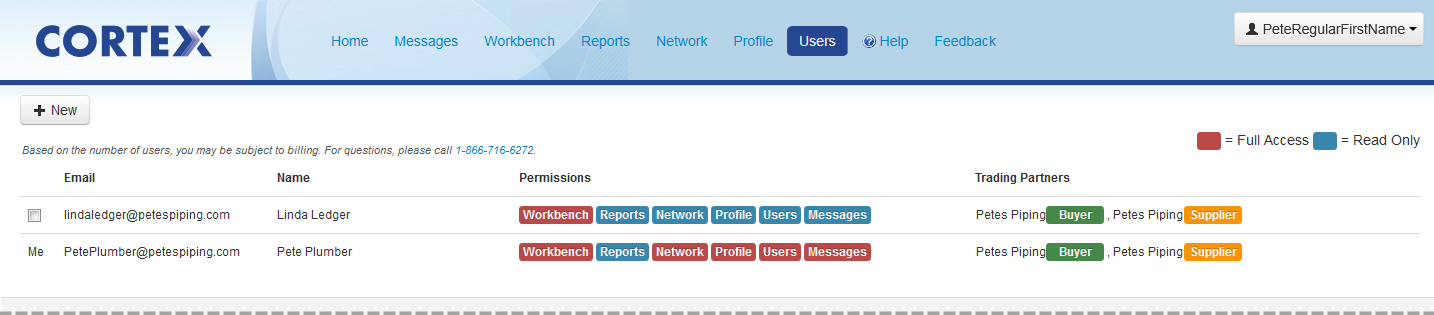
You can edit existing users to update user information, change permissions or assign them to different companies in your organization.
|
NOTE |
Only users who have Full permissions for your company's Users module are able to edit users. If a user is signed in when changes are made to their account, the changes will be applied after they sign out. |
- In the Users module, click on a user you want to edit.
The Edit User window is displayed. - Edit the user's details as required, and click OK. For details on the different areas of user information, refer to Adding Users, page 1.
|
NOTE |
You are unable to change your own permissions for the Users module. If required, another user with Full permissions must change it for you. |
- In the Users module, select the user you want to clone by clicking their check box in the # column.

When a check box is selected, the New button at the top of the Users module is replaced by a new set of buttons.
|
NOTE |
If a check box in the # is replaced with "Me", this is your own user account. You are unable to clone your own user account. |
- Click Clone.
The Clone window displays, with the same permissions and Trading Partner settings as the user you selected.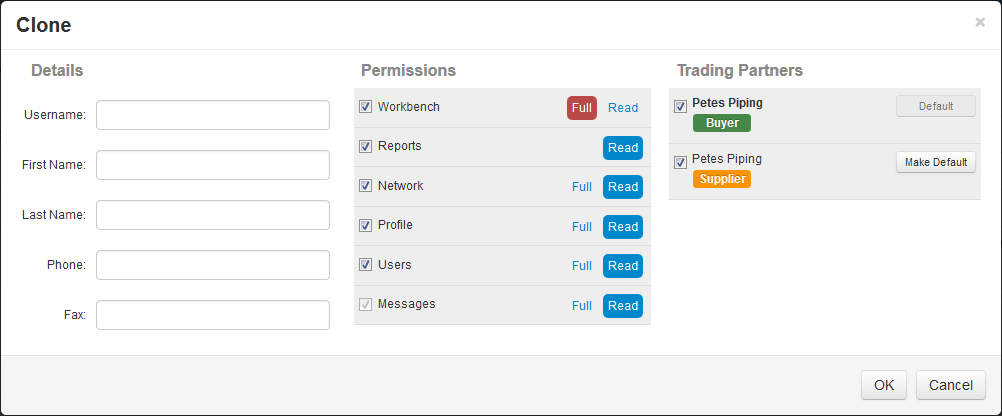
- Enter the Details for the new user. For information on the Details area, refer to Adding Users, page 1.
- If required, modify the permission and Trading Partner settings. For details on permissions and Trading Partners settings, refer to Users, page 1.
- Click OK.
The new user is added to the user list.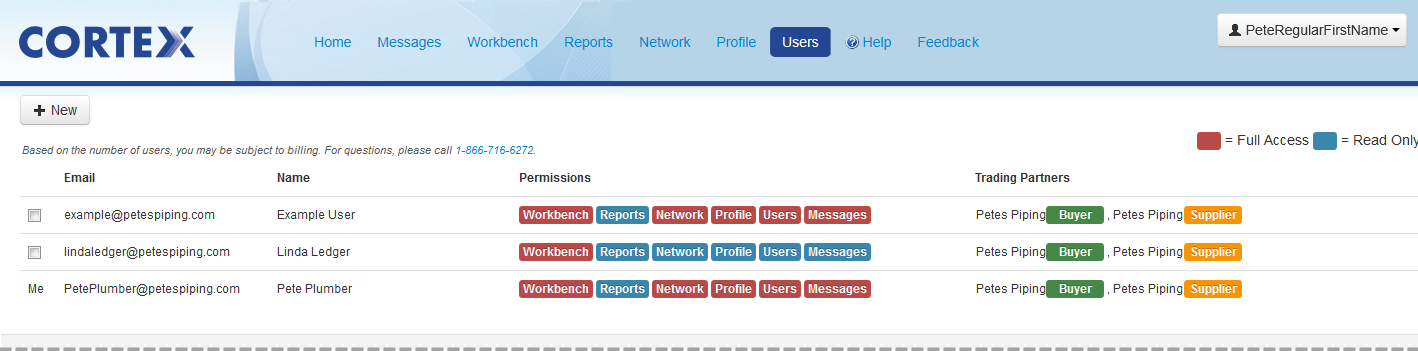
-
In the Users module, select one or more of the users you want to edit by check their check boxes in the # column.
When a check box is selected, the New button at the top of the Users module is replaced by a new set of buttons.
|
NOTE |
If a check box in the # is replaced with "Me", this is your own user account. You are unable to edit your own user account as part of a multiple selection. |
- Click either Permissions or Trading Partners to edit the module permissions or company assignment for all of the selected users.
The associated edit window appears.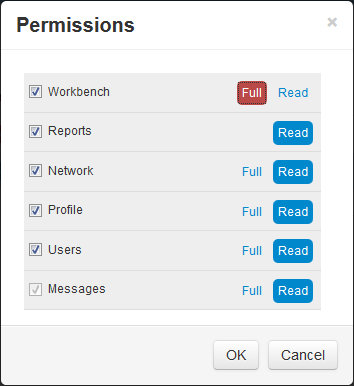
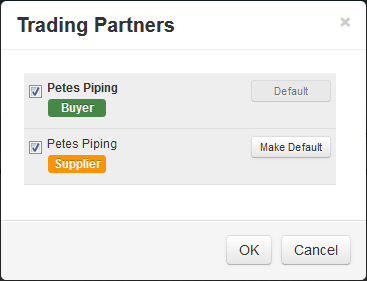
- Change the permissions or Trading Partners settings and click OK. For details on permissions and Trading Partners settings, refer to Users, page 1.
- In the Users module, select one or more of the users you want to delete by check their check boxes in the # column.

When a check box is selected, the New button at the top of the Users module is replaced by a new set of buttons.
|
NOTE |
If a check box in the # is replaced with "Me", this is your user. You are unable to delete your own user account. |
- Click Delete.
The Confirm Delete window displays.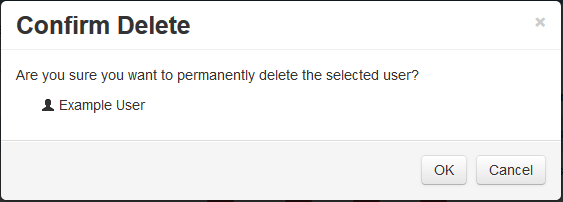
- Click OK.
The selected users are deleted.